

Korea Travel Apps in 2026: The Complete Guide to Every App You Actually Need
Google Maps still can’t navigate Korea, but a small stack of local apps does everything better. Here is exactly what to install, how to set each one up, and what actually works without a Korean phone number or card.
| Maps | Naver Map (main) + KakaoMap (buses). Google Maps still cannot give driving or walking directions in Korea as of July 2026 |
|---|---|
| Translation | Papago for Korean, Google Translate as backup. Install both |
| Taxis | k.ride if you want foreign-card in-app payment; Kakao T with “Pay to Driver” otherwise; your home Uber app also works in Seoul |
| Trains & buses | Korail Talk (passport + email signup, foreign Visa/MC accepted) or Klook’s real-time KTX booking; express bus foreign-card payment on Kobus arrives August 2026 |
| Money | Physical T-money or WOWPASS for transit; you cannot tap a foreign contactless card on any Korean subway gate yet |
| Before you fly | e-Arrival Card (mandatory for all foreign visitors since January 2026), K-ETA check, eSIM, and KakaoTalk verified on your home number |
1. The app stack at a glance: what to install, in what order
2. Google Maps doesn’t work in Korea: the real story in 2026
3. Before you fly: e-Arrival Card, K-ETA and the government stack
4. The pre-departure setup checklist (data first)
5. Naver Map: your main map, used properly
6. KakaoMap: the bus specialist and your backup map
7. Papago + Google Translate: the translation stack
8. KakaoTalk: Korea’s messenger, and the signup trap
9. Taxis: Kakao T, k.ride and Uber, honestly compared
10. Trains and express buses: booking KTX like a local
11. T-money, Apple Wallet and the Climate Card: transit money explained
12. Payment reality: cards, Apple Pay and the cash you still need
13. Delivery and restaurant apps: Baemin, CatchTable Global and the waitlist game
14. Safety and official apps: the alert that screams in Korean, and the number that answers in English
15. Booking super-apps: Klook, Trip.com, Creatrip and Trazy
16. The full matrix: every app, what works without a Korean number or card
1. The app stack at a glance: what to install, in what order
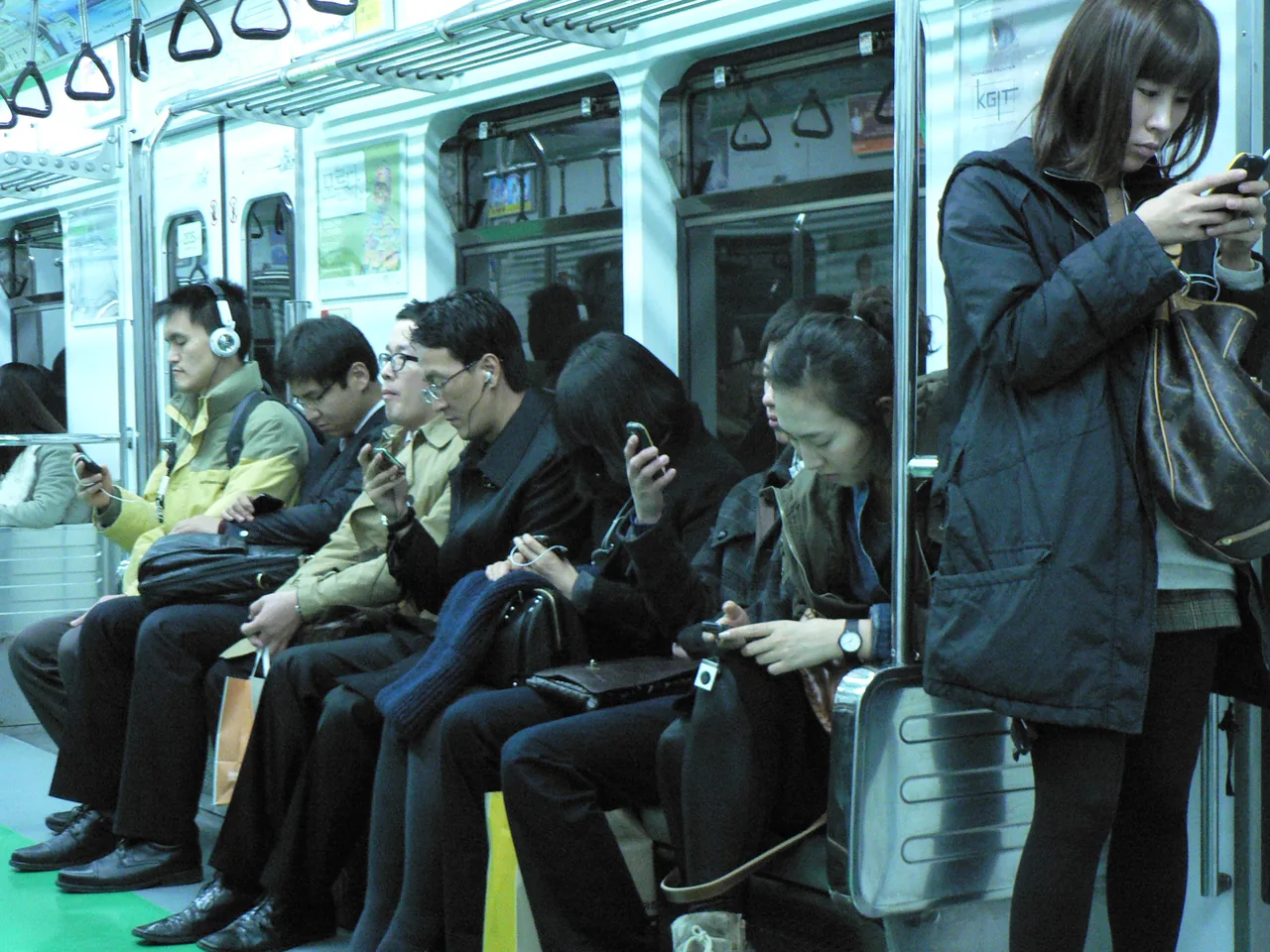
Korea runs on its own apps. Google Maps cannot navigate here, Uber is a minor player, and the dominant reservation, delivery and payment apps were built for Korean residents first. The good news: a compact stack of six apps covers a whole trip, every one of them works without a Korean phone number, and most of the setup can be done from your sofa at home. Here is the full priority list; the rest of this guide walks through each app in depth.
| Priority | App | What it does for you |
|---|---|---|
| Install before you fly | Naver Map | Your main map: directions, live bus and subway times, restaurant reviews, bookings |
| Papago | Korean-specialist translator: menus, signs, conversations | |
| KakaoTalk | Korea’s messenger; guesthouses and tour operators confirm bookings here | |
| k.ride (or Kakao T) | Taxi hailing on Korea’s dominant driver network, built for foreign visitors | |
| Korail Talk | Official KTX and train booking; foreign passport + email is enough to register | |
| Your eSIM app | Data from the moment you land, which every app above depends on | |
| Add when you need it | KakaoMap | Best live bus positions and congestion data; backup map |
| Google Translate | Backup translator and live earbud interpretation | |
| CatchTable Global | Restaurant reservations and waitlists, built for foreigners | |
| Baemin | Food delivery to your hotel, now in English, Japanese and Chinese | |
| Klook / Trip.com | Attraction tickets, passes, AREX, KTX and bus tickets in one place | |
| Emergency Ready | Translates Korea’s loud emergency alerts and maps shelters | |
| Safe to skip | T map | Korea’s top car navigation app, but it has no English version |
| Yogiyo | Delivery app that requires Korean identity verification | |
| Tabling | Korea’s top waitlist app, but effectively closed to visitors (Korean number + ID) |
2. Google Maps doesn’t work in Korea: the real story in 2026
As of July 2026, Google Maps still cannot give you driving directions or walking directions anywhere in South Korea. This is the single most important thing to understand before you land, because it breaks the reflex that works in almost every other country. You will also read headlines saying the ban is over. The truth sits in between, and getting it right saves you real frustration.
| Google Maps in Korea | Status (July 2026) |
|---|---|
| Driving navigation | Does not work |
| Walking directions | Does not work |
| Subway / public transit routing | Works, but sparse and often outdated |
| Searching places, reading reviews | Works, but small-business listings are patchy and reviews skew to tourists |
| Dropping a pin, sharing a location | Works |
What actually changed in 2026
On 27 February 2026, the Korean government conditionally approved Google’s request to export the country’s 1:5,000 high-precision map data, the first approval since Google originally asked back in 2007, ending a 19-year standoff. The conditions are substantial: coordinates of sensitive facilities must be deleted, satellite imagery blurred, the data processed on servers run by a domestic partner, and an emergency shut-off mechanism built in.
Approval is not the same as launch. Two months later, Korean media reported that working-level talks between the government and Google had not even begun, and the Ministry of Land, Infrastructure and Transport stated that no data leaves the country until Google submits an implementation plan. Realistically, full turn-by-turn navigation is still six to twelve months or more away, and possibly longer.
What about Apple Maps?
Apple Maps is in the same boat, and slightly further behind. Its own map-export application is under separate review; a decision was deferred in December 2025 at Apple’s request, and as of July 2026 it has not been approved. Directions do not work. Use it, at most, to see where you are on a map.
3. Before you fly: e-Arrival Card, K-ETA and the government stack
Since 1 January 2026, every foreign visitor to Korea must submit an electronic arrival card before landing; the old paper form handed out on the plane is gone. Combined with the K-ETA rules, this is the part of the trip most guides skip and most travellers discover in a queue at Incheon. It takes ten minutes at home.
e-Arrival Card: now mandatory for everyone
Two clarifications that trip people up: holders of a Korean Alien Registration Card (ARC) are exempt, and being exempt from K-ETA does not exempt you from the e-Arrival Card. They are separate systems. A Q-code health entry is not required for ordinary tourists in 2026; it applies only to arrivals from designated quarantine-watch regions or people with symptoms.
K-ETA: most visitors are exempt through 2026
The K-ETA electronic travel authorisation is temporarily waived for passport holders of 67 countries until 31 December 2026, including the United States, Canada, the United Kingdom, Australia, New Zealand, Japan, Taiwan, Singapore and most of the EU. If your country is not on the exemption list, apply only at the official site, k-eta.go.kr; the fee is ₩10,000 and approval is valid for three years. One quirk worth knowing: even travellers whose country is exempt can voluntarily apply for a K-ETA anyway, and doing so exempts them from the separate e-Arrival Card step above — a ₩10,000, three-year trade for one less form per trip if you visit Korea often.

4. The pre-departure setup checklist (data first)
Every app in this guide assumes you have mobile data from the moment you land, and the order you set things up in matters more than people expect. One task in particular, verifying KakaoTalk, must happen before you swap your SIM. Here is the sequence that avoids every known trap.
If you have not sorted your data yet, the box below compares the eSIM options travellers actually use in Korea.
5. Naver Map: your main map, used properly
Naver Map is the app you will open more than any other in Korea, and it has quietly become genuinely good for foreigners: full interface in English, Japanese and Chinese, no login or Korean number required, and since 2026 even bookings and payments with nothing but a passport. It topped a survey of foreign visitors as the most satisfying travel app in Korea at 27.8 percent, and it is not close.
No Korean number neededEN / JA / ZH UIFree
What it does that Google can’t
- Real navigation: walking and driving directions with English voice guidance, plus transit routing that knows the last train home.
- Live transit data: real-time bus arrivals and subway departures, straight from the source.
- Restaurant intelligence: receipt-verified reviews (reviewers must scan a purchase receipt), photographed menus and prices. This is Korea’s standard for finding food, far more reliable here than Google reviews.
- Bookings inside the map: since May 2025, foreigners can reserve, order and pay in-app, with business descriptions and menus auto-translated by Papago’s AI. The Reserve tab works in English, Chinese and Japanese.
The V6 redesign and passport verification
On 10 November 2025 Naver shipped its first major redesign in six years, organising the app into five tabs: Discover, Reserve, Transit, Navigation and Saved. More important for visitors: on 9 June 2026, Naver added passport-based identity verification, so you can verify your account and use Naver’s reservations, ordering and payments without a Korean phone number at all. This is recent, and it removes the last real wall between visitors and Naver’s booking ecosystem.
Setup in one minute
6. KakaoMap: the bus specialist and your backup map
The 2026 consensus is simple: Naver Map as your main map, KakaoMap installed alongside it for buses. KakaoMap has a solid English interface and one genuine superpower that Naver doesn’t match: the best real-time bus tracking in Korea.
English UIBest bus dataFree
- Live bus positions and congestion: see exactly where your bus is on the route and how full it is before it arrives, which changes how you use Korean city buses.
- iOS Live Activities: a live bus countdown on your lock screen while you walk to the stop.
- Ultra-precise subway: launched 9 June 2025, this shows trains moving along the line in real time, covering 23 lines across the Seoul metropolitan area and Busan. Watching your actual train approach the platform is as useful as it is oddly satisfying.
The honest caveats: in English mode, some bus information and notices still appear in Korean, and its English place data is thinner than its Korean layer, the same weakness Naver has. For which app wins each specific job, from hiking trails to street view, our Naver Map vs KakaoMap comparison comparison goes deep on both.
Do you need a separate subway app?
Not really. Naver Map’s transit tab covers routing, transfers and last trains, so a dedicated subway app is a nice-to-have, not a need. If you like having one: Subway Korea (by Malang) has an English and Japanese interface with offline timetables, and Kakao Metro tells you which car and door position saves you time at your transfer. Both are free and still actively run.
One more name you will see on Korean phones: T map, the country’s number-one driving navigation app. It has no English version, so unless you read Korean it is not for you; drivers should use Naver Map’s English voice navigation instead.
7. Papago + Google Translate: the translation stack
For Korean, Papago is the better translator; for everything else, Google Translate is the better toolkit. They are both free, so the correct answer is to install both.
Papago is Naver’s translator, and it is built around Korean the way Google’s is built around English. It handles text, voice, camera, conversation mode, handwriting and offline packs across roughly 15 languages, and its recent upgrades run on Naver’s HyperCLOVA X AI models.
- Menu OCR that gets food right: point the camera at a menu and Papago reads 삼겹살 as “pork belly” where generic translators produce literal nonsense. For restaurant menus, it is the tool.
- Honorifics toggle: a switch makes your translated Korean polite, which matters in a language with built-in formality levels. Leave it on; politeness is never wrong in Korea.
- Slang and idiom: Papago is markedly stronger on Korean colloquialisms and the kind of phrasing you actually meet on signs, banners and chat messages.
The three modes you will actually use
Where Google Translate wins
Google Translate’s 2025 Gemini upgrade noticeably improved its Korean, and it does things Papago doesn’t: live earbud interpretation rolled out globally in June 2026 covering 70+ languages including Korean, plus a broader language range if your own language is not among Papago’s ~15. Download the Korean offline pack on wi-fi before you fly and it keeps working in basements and dead zones.
8. KakaoTalk: Korea’s messenger, and the signup trap
KakaoTalk is not optional infrastructure in Korea; it is the infrastructure. Roughly 97 percent of the domestic messenger market runs through it, with 48.9 million monthly users in 2025 in a country of about 52 million. WhatsApp and LINE are simply not used here, and “do you have Kakao?” is the default way anyone, from a guesthouse owner to a hiking-club acquaintance, will try to reach you.
Signup from 230 countriesNo Korean number neededFree
Why a tourist actually needs it
The practical reason is bookings. Guesthouses, small tour operators, rental studios and plenty of restaurants send their confirmations, directions and day-of updates through KakaoTalk or their Kakao Channel (a business account), not email. If a host says “I’ll send the door code on the day,” this is where it arrives. It is also how you will stay in touch with any Korean friends you make.
The signup trap, and how to dodge it
9. Taxis: Kakao T, k.ride and Uber, honestly compared
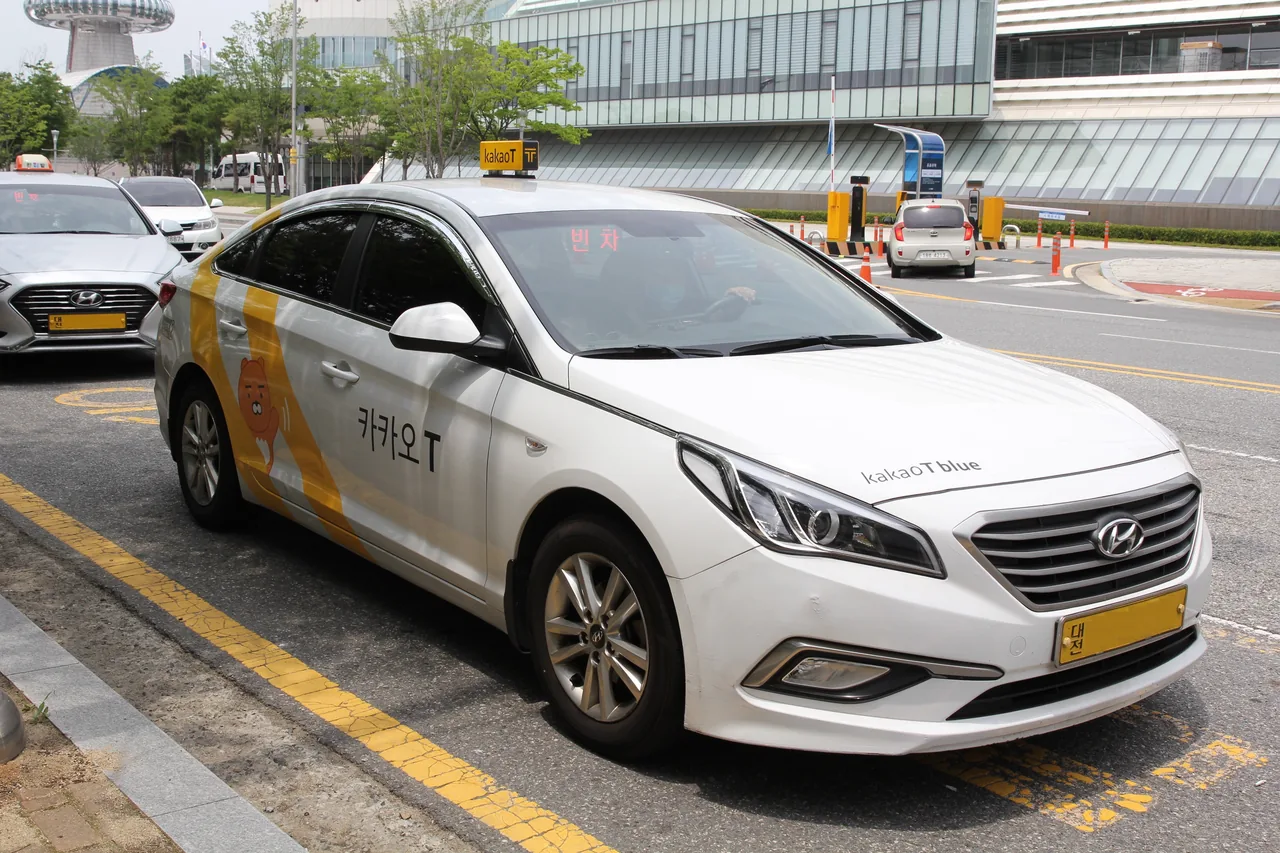
Hailing a taxi in Korea is a solved problem; paying for one inside the app, with a foreign card, is where visitors get stuck. Three apps matter, they share most of the same cars, and the right choice depends mainly on how you want to pay. Seoul’s base fare has been ₩4,800 since a fare hike took effect on February 1, 2026 (with a further increase to around ₩5,500 under industry discussion, unconfirmed as of this writing), plus a late-night surcharge, so this is not an expensive problem, just an avoidable one.
| Kakao T | k.ride | Uber | |
|---|---|---|---|
| Who it’s for | Everyone in Korea (~90% market share) | Foreign visitors, by design | Anyone who already has Uber at home |
| Signup | Foreign number OK (SMS with country code) | Google or Apple account, no phone number at all | None needed; your home account works as is |
| Foreign card in-app | Often rejected (“Invalid card”), still in 2026 | Works, auto-charged | Works; your saved card just charges |
| Languages | English UI | EN/JA/ZH UI + ~100-language auto-translation of destinations and driver chat | Same app as home |
| Coverage | Everywhere | Same driver network as Kakao T | Dense in Seoul, thinner in Busan/Incheon, sparse elsewhere |
The default. Nine in ten app-hailed taxis in Korea run through Kakao T (9.21 million monthly users as of August 2025), so wait times are the shortest and coverage reaches everywhere taxis exist. You can register with a foreign number, and the interface is available in English. The weak point is payment: foreign card registration still fails often in 2026, with the app rejecting perfectly good Visa and Mastercard numbers as “Invalid card.”
Kakao Mobility’s official app for foreign visitors, launched in June 2024 and expanded in March 2025 to travellers from twelve more countries including the US, Canada, Japan and Taiwan. It solves everything that makes Kakao T awkward for tourists: sign up with a Google or Apple account (no phone number), register a foreign card that actually works and auto-charges, and use an EN/JA/ZH interface with destinations and driver chat auto-translated across roughly 100 languages. Crucially, it hails from the same driver pool as Kakao T, so you sacrifice nothing on availability. For most visitors this is the correct answer.
Uber rebranded its Korean joint venture from UT back to Uber in March 2024 and took full ownership in May 2025. The pitch is zero setup: your existing app and stored payment card work in Korea unchanged. Density is genuinely good in Seoul (around 7 to 8 percent of the market by late 2025), workable with longer waits in Busan and Incheon, and thin in the provinces. Fares generally run slightly higher than Kakao T for the same trip. Perfect as the first-night option before you have set anything else up.
One more worth knowing: TADA operates in Seoul and at Incheon and Gimpo airports, has had an English interface since 2023, takes foreign cards, and is the specialist for large vans, useful for groups with luggage.
10. Trains and express buses: booking KTX like a local
Korea’s rail booking is far more foreigner-friendly than its reputation: the official Korail Talk app registers you with just a passport and an email, takes foreign Visa and Mastercard, and opens seats one month before departure. Intercity buses are the last frontier, and even that wall comes down in stages from August 2026.
The official app of Korail, in English, Chinese and Japanese. It is the direct, fee-free way to book KTX, ITX and regular trains.
If the app fights you, two official fallbacks exist: the web version at korail.com/global/eng (the old letskorail.com now redirects into korail.com), and the foreigner-priority counter at Seoul Station, running since July 2024.
KORAIL PASS: when unlimited beats point-to-point
The KORAIL PASS is an unlimited-rail pass exclusively for foreign passport holders. It covers KTX and Korail trains (not SRT) with up to two seat reservations per day. 2026 adult prices:
| Pass | Type | Price |
|---|---|---|
| 2-day | Flexible (any 2 days in 10) | ₩131,000 |
| 3-day | Consecutive | ₩165,000 |
| 4-day | Flexible (any 4 days in 10) | ₩234,000 |
| 5-day | Consecutive | ₩244,000 |
It sells on Korail’s global site, Klook, KKday and Trip.com. The mental math: a Seoul–Busan KTX round trip alone approaches the 2-day pass price, so the pass wins the moment your itinerary includes two long-haul days.
The OTA route, and SRT
Since April 2026, Klook sells KTX and ITX tickets with a real-time connection to Korail: live seat availability, instant ticketing, and boarding with the mobile voucher, no Korail account or Korean number, in 20+ languages. Trip.com also books KTX, listing the base fare plus a small disclosed fee, with free cancellation until two days before departure. For the separate SRT high-speed line, the English web booking at etk.srail.kr accepts foreign cards (choose “Foreigner”), and the SRT app itself added English, Chinese and Japanese on 20 May 2025. Note that the KORAIL PASS is not valid on SRT; it is a different company.
Express and intercity buses: the August 2026 shift
Korea’s superb express bus network has long been the hardest thing for foreigners to book online, because the main platforms rejected foreign cards. That is scheduled to change: Kobus (express routes) opens online foreign-card payment in August 2026, with intercity routes following in September 2026, per the announcement on 1 July 2026. Until then: the Bustago app and the foreigner-focused InterCity Bus app have accepted foreign cards since July 2024, every terminal ticket counter takes foreign Visa, Mastercard, JCB and UnionPay, and Klook is the one major OTA selling express and intercity bus tickets with QR boarding. Skip TmoneyGO, which requires a Korean card and number. For how trains, buses and domestic flights fit together across the country, our guide to getting around Korea guide maps the whole network.
If a rail pass or KTX booking is on your list, the options below cover the pass and both real-time booking platforms.
11. T-money, Apple Wallet and the Climate Card: transit money explained
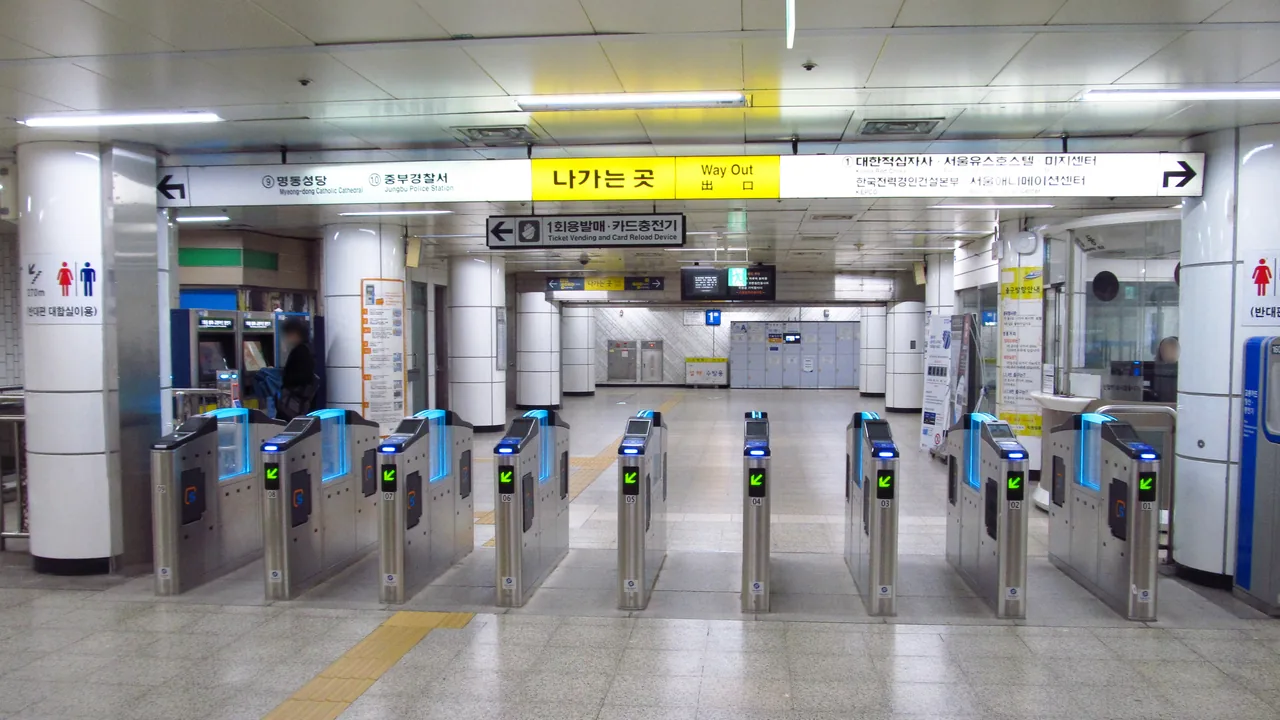
Here is the expectation to delete before you land: you cannot tap your foreign contactless bank card on a Korean subway gate. Not in Seoul, not anywhere, as of July 2026. London-style EMV open-loop simply does not exist here yet; Seoul’s own roadmap runs buses in 2025–26, subway lines 1–8 in 2027, and completion in 2030. Until then, everyone taps T-money, and getting it is easy.
Physical T-money: the default that always works
T-money on your iPhone
Since 22 July 2025, T-money lives in Apple Wallet: iPhone XS or newer on iOS 17.2+, foreign-purchased iPhones included. Express Mode means no unlocking at the gate, and the card keeps tapping for around five hours after your battery dies. The catch that matters to visitors: topping up inside Apple Wallet requires a Korean card. Pair it with a foreign-card route below, or feed it at station kiosks. On Android, overseas-region Galaxy phones cannot hold T-money in Samsung Wallet at all, so stick with the physical card.
Loading T-money without Korean plastic
| Route | How it works | The catch |
|---|---|---|
| Mobile T-money app (since Mar 2026) | Register a foreign card in-app and top up | Mastercard, Amex and UnionPay only, no Visa (as of March 2026); fee ~3.7–4.5%; Android needs NFC |
| New subway kiosks (from 17 Mar 2026) | 440 machines across 273 Seoul stations sell and reload T-money on foreign Visa/MC/JCB/UnionPay/Amex | Seoul subway stations only; still rolling out |
| WOWPASS kiosk | Prepaid KRW card with a T-money chip built in (details below) | T-money balance loads with cash only |
| Cash | Any convenience store or station machine | None; it just works |
WOWPASS: the two-in-one visitor card
WOWPASS is a prepaid Korean-won debit card for foreigners with a T-money chip inside one piece of plastic. Issue it for ₩6,000 at roughly 300 kiosks (Incheon T1 and T2, Gimpo, Jeju, major subway stations, Busan), load it with cash in 16 currencies with no loading fee (the kiosk applies its own exchange rate), or via the app with a foreign card for 4 percent. Because purchases process as a domestic Korean card, it works at merchants that decline foreign cards. Know its edges: the T-money balance is separate and cash-loaded, ATM withdrawals cost ₩1,000, and there is no Apple Pay linkage. A niche alternative, NAMANE, offers custom-printed prepaid cards whose Rail+ transit function can even pay KTX fares, and lets you move balance between its Pay and Transit purses.
The Climate Card: Seoul’s unlimited pass, by the numbers
Seoul’s Climate Card (기후동행카드) is an unlimited pass for Seoul’s subway and city buses, excluding the Sinbundang Line and express/airport buses. Tourist short-term passes: 1 day ₩5,000, 2 days ₩8,000, 3 days ₩10,000, 5 days ₩15,000, 7 days ₩20,000, plus ₩3,000 for the physical card, which foreigners must use (the mobile version needs a Korean setup). Against the ₩1,550 base fare, it pays off at four or more rides a day. Longer stays can consider the 30-day version at ₩62,000–65,000. Whether it beats plain T-money for your itinerary is exactly what our Climate Card vs T-money guide comparison calculates. And for the ride that starts it all, our Incheon Airport to Seoul guide guide covers AREX and every other route into the city, T-money in hand.

12. Payment reality: cards, Apple Pay and the cash you still need
Korea is one of the most card-centric economies on earth, and your Visa or Mastercard will work in nearly every staffed store. The traps live at the edges: markets, kiosks, Apple Pay’s patchy terminal coverage, and a currency-conversion prompt designed to skim 3 to 5 percent.
| Where | Foreign Visa / MC | Notes |
|---|---|---|
| Staffed shops, restaurants, cafes | Almost always fine | Amex is weak outside big hotels; JCB and UnionPay work in major shopping areas |
| Markets, street food, pojangmacha | Mostly no | Cash country; this is where your ₩30,000–100,000 buffer lives |
| Unmanned stores, some kiosks | Often no | Many accept only Korean cards; walk on or pay cash where possible |
| Taxis, convenience stores, chains | Yes | Physical card swipes and inserts are universal here |
Apple Pay: real, but only where the terminals are
Foreign-issued cards in Apple Pay do work in Korea, with a hard limit: only merchants with NFC terminals, roughly 10 percent of them by feel. Convenience stores, Starbucks and the big cafe chains, fast food, department stores and hypermarkets: generally yes. The independent restaurants where you will eat most meals: mostly no. Carry the physical card without exception. For locals, Apple Pay still means Hyundai Card only; the Shinhan Card launch slated for March 2026 fell through, so any blog telling you otherwise is repeating a dead rumour. Google Wallet has no official Korean launch, but foreign cards tap on the same NFC terminals.
Korean pay apps, and the wallets that do work
Naver Pay and Kakao Pay themselves are closed to short-term visitors, since both require a Korean bank account and resident identity verification. But if you use Alipay, AlipayHK, PayPay (since September 2025), GCash, TrueMoney or Touch ‘n Go at home, your own wallet now works here: Alipay+ partner wallets pay by QR at Kakao Pay’s 2-million-plus merchant network and in some 70,000 Seoul taxis.
Tax refunds got better in 2026
From 1 January 2026, Korea raised the instant tax-refund cap from ₩500,000 to ₩1,000,000 per purchase (₩5,000,000 total per stay) and dropped the minimum purchase from ₩30,000 to ₩15,000. In practice: show your passport at the register of any Tax Free shop and the VAT vanishes from the bill on the spot, and far more of your shopping now qualifies. For larger or non-instant refunds, the Global Blue app tracks refunds by barcode, Trip.PASS bundles refund functions for visitors, and Incheon Airport’s kiosks scan every operator’s forms at one machine.
13. Delivery and restaurant apps: Baemin, CatchTable Global and the waitlist game
2026 is the year Korean food delivery finally opened to visitors: Baemin, the market leader, launched full English, Japanese and Chinese ordering in February, and it takes foreign cards. Reservations and waitlists split into two worlds, one built for you and one closed to you, and knowing which is which saves whole evenings.
Korea’s dominant delivery app went multilingual on 4 February 2026: menus, search, payment and live rider tracking all follow your phone’s system language across English, Japanese and Chinese. Foreign Visa, Mastercard, JCB and UnionPay are accepted, with no Korean number or residence card required, and since 2 June 2026 it takes Apple Pay on overseas-issued cards, a first among Korean delivery apps.
The alternatives, quickly: Coupang Eats has an English interface but declines foreign cards often enough to frustrate (Wise and Revolut cards are the usual workaround); Yogiyo sits behind Korean-language identity verification, so skip it; and Shuttle, the English-native niche service, survives in central Seoul and parts of Busan.
The reservation app actually built for you: sign up with a Google or Apple email (no Korean number or ID), use it in English, Japanese, or simplified and traditional Chinese, and pay any deposits with Visa, Mastercard, Amex or JCB. It books and waitlists thousands of restaurants from fine dining to the current hotspots. Its domestic sibling Tabling, Korea’s number-one waitlist app, requires Korean-language signup and identity verification, which makes it effectively unusable for visitors, though some restaurants let you register on the in-store tablet.
Delivery works best when your hotel sits somewhere central and rider-friendly; our where to stay in Seoul guide breaks down which neighbourhoods put the whole delivery map at your door.

14. Safety and official apps: the alert that screams in Korean, and the number that answers in English
At some point during your trip, every phone in the room, including yours, will erupt with a violent alarm and a wall of Korean text. This is Korea’s public emergency alert system, it is almost always routine, and two free tools turn it from alarming to useful.
Why your phone screams, and what it said
Korea pushes government emergency alerts to every handset on its networks, no signup needed, at full volume. The overwhelming majority are mundane: heavy rain warnings, heat advisories, a missing-person notice. Since February 2024 the alerts include English keywords alongside the Korean, so a glance now tells you the category even before you translate the rest with Papago’s camera.
The official app of the Ministry of the Interior and Safety, and the proper companion to those alerts: it translates disaster notifications into English, Chinese and Japanese, maps the nearest shelters, and puts 119 (fire and ambulance) one touch away. It costs nothing and weighs little; install it and forget it is there, which is the point of safety equipment.
The Korea Tourism Organization’s 24-hour helpline (+82-2-1330, plus chat) answers in English, Japanese and Chinese around the clock, every day. It does two things no app does: live interpretation, as in hand your phone to the taxi driver and let the operator explain where you are going, and formal tourist-complaint handling if something goes genuinely wrong. Save the number now; it is the human backup behind your whole app stack.
Three more, one paragraph each
VISITKOREA, the KTO’s official app, is alive and well at version 5.0, whatever the shutdown rumours claim, and is a decent aggregator of festivals, events and area guides. Odii offers free audio guides for major sights, effectively a free tour guide in your pocket. And if you visit between March and May, AirKorea (official) or IQAir shows the fine-dust forecast that decides whether locals mask up; check it the way you check the weather.
15. Booking super-apps: Klook, Trip.com, Creatrip and Trazy
You do not need a Korean account to buy almost any ticket in Korea anymore; two international super-apps and two Korea specialists cover the lot, in your language and on your card.
The strongest single app for tickets and passes in Korea. It sells the Discover Seoul Pass (70+ attractions on one pass), discounted AREX airport-express tickets with QR codes you scan straight at the gate, theme parks, day tours, and, uniquely among the big OTAs, express and intercity bus tickets with QR boarding. Since April 2026 it also books KTX with live Korail seat data, as covered in the train section.
The consolidation play: flights, hotels and KTX bookings in one app, in 25 languages. If you prefer one wallet and one customer-service thread for your whole trip’s big-ticket items, this is that app, and its Korea rail coverage makes it more useful here than in most countries.
Two specialists earn a place beside them. Creatrip curates Korea-only deals, salons, clinics, restaurants and experiences, in English, Chinese, Japanese, Vietnamese and Thai, and often surfaces things the global platforms miss. Trazy leans into tours and K-pop and K-culture experiences, from concert packages to filming-location day trips.
If Seoul’s big sights are on your list, the Discover Seoul Pass options below are the usual starting point.
16. The full matrix: every app, what works without a Korean number or card
This is the table to screenshot. Every app in this guide, whether it speaks your language, and the two questions that decide everything in Korea: does it work without a Korean phone number, and does it take a foreign card? Current as of July 2026.
| App | What for | English? | No Korean number? | Foreign card? |
|---|---|---|---|---|
| Naver Map | Maps, transit, bookings | Yes (+JA/ZH) | Yes; passport verification for bookings | Yes, for in-app bookings |
| KakaoMap | Buses, backup map | Yes (some Korean remains) | Yes | Not needed (free) |
| Papago | Korean translation | Yes | Yes | Not needed (free) |
| Google Translate | Backup translation | Yes | Yes | Not needed (free) |
| KakaoTalk | Messaging | Yes | Yes (verify on home number first) | Not needed for chat |
| Kakao T | Taxis | Yes | Yes (foreign SMS signup) | Often fails in-app; use Pay to Driver |
| k.ride | Taxis for visitors | Yes (+JA/ZH) | Yes (Google/Apple login) | Yes |
| Uber | Taxis, mainly Seoul | Yes | Yes (home account) | Yes (home card) |
| TADA | Vans, airports | Yes | Yes | Yes |
| Korail Talk | KTX / trains | Yes (+JA/ZH) | Yes (passport + email) | Yes (Visa/MC, 3-D Secure) |
| SRT app | SRT high-speed line | Yes (since May 2025) | Yes (web “Foreigner” signup) | Yes (web) |
| Bustago / InterCity Bus | Intercity buses | Yes | Yes | Yes (since Jul 2024) |
| TmoneyGO | Express buses (domestic) | Limited | No | No; skip it |
| Mobile T-money | Transit top-up | Yes | Yes | MC/Amex/UnionPay only, no Visa; 3.7–4.5% fee |
| WOWPASS | Prepaid card + T-money | Yes | Yes | Cash best; app top-up 4% |
| Baemin | Food delivery | Yes (+JA/ZH, since Feb 2026) | Yes | Yes (Visa/MC/JCB/UnionPay + Apple Pay) |
| Coupang Eats | Food delivery | Yes | Yes | Unreliable; Wise/Revolut help |
| CatchTable Global | Restaurant bookings | Yes (+JA/ZH) | Yes (email login) | Yes (Visa/MC/Amex/JCB) |
| Klook / Trip.com | Tickets, passes, KTX | Yes (20+/25 languages) | Yes | Yes |
| Emergency Ready | Disaster alerts, shelters | Yes (+JA/ZH) | Yes | Not needed (free) |
The wrap-up
Read the table top to bottom and a pattern emerges: in 2026, Korea works remarkably well for visitors who install the right six apps, and remarkably badly for anyone expecting Google Maps and a tap of their home bank card to carry them. An hour of setup at home, eSIM, e-Arrival Card, KakaoTalk verified, Naver Map in your language, buys you a trip where the phone simply works.
From here, put the stack to use: our complete Korea travel guide ties every piece of trip planning together, the Seoul 3-day itinerary shows the capital with these exact apps doing the navigating, and our best time to visit Korea guide guide settles when to book those KTX seats. And when Seoul feels handled, aim Korail Talk south; the Busan travel guide is the natural second city for everything you just installed.
🎡Things to Do51
🍜Food8
🏨Where to Stay3
🚇Getting Around9
🧭Travel Tips24
📌More3
Frequently asked questions
Images: Photo: Marc Smith, CC BY 2.0, via Wikimedia Commons. · Photo: Arne Müseler / arne-mueseler.com, CC BY-SA 3.0 DE, via Wikimedia Commons. · Photo: LERK, CC BY-SA 4.0, via Wikimedia Commons. · Photo: Rickinasia, CC BY-SA 4.0, via Wikimedia Commons. · Photo: 생각하는 나무, CC BY-SA 4.0, via Wikimedia Commons. · Photo: Republic of Korea (Korea.net), CC BY-SA 2.0, via Wikimedia Commons.